Internet Speed Test Results: Ping, Jitter & Mbps Explained
Learn to read internet speed test results, understand ping, jitter, Mbps, and latency, and identify what affects streaming, gaming, and video calls so you can troubleshoot your connection confidently.
On this page
- Understanding Internet Speed Test Results: Ping, Jitter, Mbps, and Latency Explained
- Internet Speed Test Results at a Glance
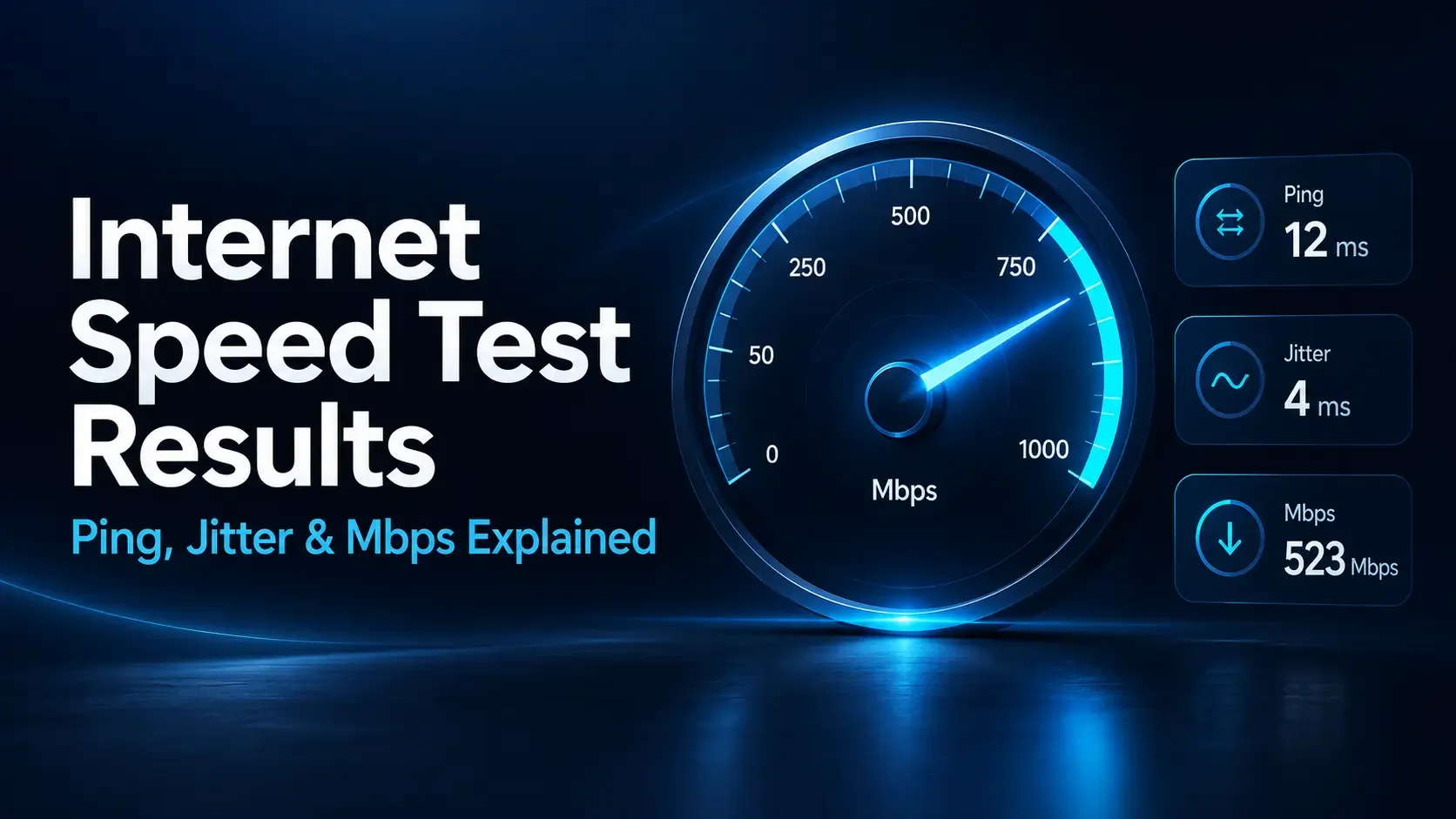
- What Does Mbps Mean?
- Download Speed: How Quickly Data Reaches You
- Upload Speed: Why Outgoing Traffic Matters
- Ping vs Latency: What Is the Difference?
- What Is Jitter?
- Idle vs Loaded Latency: Why a Fast Connection Can Still Lag
- Packet Loss: When Some Data Does Not Arrive
- How to Read the Numbers Together
- How to Run a More Useful Internet Speed Test
- What Common Result Patterns Suggest
- Frequently Asked Questions
- Use Your Results to Choose the Next Step
- Further Reading
Understanding Internet Speed Test Results: Ping, Jitter, Mbps, and Latency Explained
You run an internet speed test and see several numbers: download speed, upload speed, ping, and perhaps jitter. Your download result looks impressive, but video calls still freeze and online games sometimes lag. What are those numbers actually telling you?
Understanding internet speed test results means looking at three things: how much data your connection transfers, how quickly it responds, and how consistently it delivers data. A high download speed answers only part of that question.
This guide explains the main measurements, shows how to read them together, and helps you decide what to check when your connection feels slower than the results suggest.
Internet Speed Test Results at a Glance
Start with the units. Mbps measures data transfer rate, milliseconds measure time, and percentages can describe how much test traffic was lost.
| Measurement | What it tells you | Generally preferable |
|---|---|---|
| Download speed | How quickly your device receives data | Enough Mbps for your simultaneous activities |
| Upload speed | How quickly your device sends data | Enough Mbps for outgoing traffic |
| Ping or round-trip latency | How long a request and response take | Lower milliseconds |
| Jitter | How much network delay varies | Lower, more consistent variation |
| Loaded latency | Response time while the connection is busy | A small increase over idle latency |
| Packet loss | The percentage of test packets that fail to arrive | Ideally 0% during the measurement |
Not every tool displays every metric. A missing packet-loss or jitter result means the measurement is unavailable, not that its value is zero.
What Does Mbps Mean?
Mbps stands for megabits per second. One Mbps represents one million bits transferred each second. Internet plans and speed tests commonly use this unit to describe transfer rates.
A speed test measures the throughput achieved between your device and a test server under the conditions of that test. It does not guarantee that every website or application will transfer data at the same rate.
Mbps vs MB/s: Watch the Capital Letter
Download applications sometimes display megabytes per second, written as MB/s. A byte contains eight bits, so divide Mbps by eight to estimate the equivalent rate in MB/s.
- 40 Mbps: approximately 5 MB/s.
- 100 Mbps: approximately 12.5 MB/s.
- 500 Mbps: approximately 62.5 MB/s.
These are unit conversions, not promised file-download speeds. Protocol overhead, server limits, storage performance, and other traffic can reduce the actual result.
For example, a download application showing 10 MB/s is transferring approximately 80 Mbps. Comparing its number directly with an 80 Mbps speed test could make a normal connection appear eight times slower than it is.
Download Speed: How Quickly Data Reaches You
Download speed matters when you stream videos, receive files, install games, or load image-heavy pages. It also affects how many people can perform data-intensive activities simultaneously.
Suppose one person is downloading a large game while another watches a film. Both activities share the connection's available download capacity. The speed each receives depends on demand and how traffic is managed.
However, extra Mbps does not improve every activity equally. Once a video has enough bandwidth for its selected quality, buying more capacity will not automatically make that same video look sharper.
As a practical reference, Netflix recommends a stable connection of at least 15 Mbps for 4K streaming. That recommendation is for the viewing activity; a busy household needs additional capacity for other simultaneous use.
Upload Speed: Why Outgoing Traffic Matters
Upload speed measures how quickly your device sends data. It affects cloud backups, file sharing, livestreaming, and the video and audio you send during calls.
A connection might deliver 300 Mbps download and 20 Mbps upload because the internet plan provides different capacities in each direction. That difference is not automatically a fault.
Imagine a laptop uploading a large photo library during a meeting. If the backup occupies most of the available upload capacity, your outgoing call traffic may experience delays. Other participants might see your camera freeze even while their video looks clear to you.
Check your plan's upload allowance separately. Comparing both results with the advertised download figure can lead to the wrong diagnosis.
Ping vs Latency: What Is the Difference?
Latency means delay. In networking, it can describe the time data takes to travel one way or the time needed for a complete round trip, depending on the measurement.
A speed test's ping value usually refers to round-trip time: a small exchange travels to a server and a response comes back. A result of 25 milliseconds means that measured exchange took about 0.025 seconds.
The traditional ping utility uses ICMP echo messages. Browser speed tests may measure response time using other methods, so their results need not exactly match a command-line ping.
What Is a Good Ping?
Lower round-trip times generally help interactive activities, but there is no single passing number for every application. Server distance, network routing, and the activity itself all matter.
For a specific example, NVIDIA requires less than 80 ms of network latency to a GeForce NOW data center and recommends less than 40 ms in its Windows setup guidance. Those figures apply to that service and destination, not every game or speed test.
A nearby test server might respond in 15 ms while a distant game server responds in 90 ms. Both measurements can be accurate. Always consider where the measurement ends.
What Is Jitter?
Jitter describes variation in network delay. A connection can have a reasonable average response time while individual responses arrive unevenly.
Consider these hypothetical consecutive round-trip measurements:
- Steady connection: 20 ms, 21 ms, 19 ms, 20 ms.
- Uneven connection: 20 ms, 90 ms, 25 ms, 120 ms.
The second sequence has much larger swings. In a conversation or online game, those changes can be more disruptive than a consistently modest delay.
Some communication applications temporarily hold incoming data in a jitter buffer to smooth its delivery. That can improve continuity, but waiting for late data also adds delay.
Different tools calculate and summarize packet delay variation differently. Compare jitter results from the same tool and test conditions before drawing conclusions about small differences.
Idle vs Loaded Latency: Why a Fast Connection Can Still Lag
Idle latency measures responsiveness when the connection is relatively quiet. Loaded latency measures responsiveness while data transfers are taking place.
For example, you might see 18 ms while idle and 220 ms during an upload test. The connection responds quickly when quiet, but response times increase substantially when traffic builds.
One possible explanation is bufferbloat: excessive delay caused by data waiting in network queues. A speed test alone cannot identify exactly which device or network segment is responsible.
This distinction helps explain why a game feels responsive until someone starts a backup. The available Mbps may be adequate overall, while competing traffic creates long waits for time-sensitive packets.
Pausing or limiting a large transfer can help you test that explanation. On compatible routers, properly configured smart queue management may also reduce delay under load. It manages traffic; it does not create extra internet capacity.
Packet Loss: When Some Data Does Not Arrive
Packet loss occurs when transmitted packets do not reach their destination. A measured loss rate of 1% means roughly one in every hundred test packets was not received during that measurement.
Depending on the application, missing data may be retransmitted, concealed, or skipped. You might notice reduced transfer speed, broken audio, or brief freezes.
Aim for no observed loss, particularly for real-time communication. Repeated loss deserves investigation, but the pattern matters: a short burst can affect a call differently from occasional isolated losses.
Also remember that 0% in a short test does not prove the connection never loses packets. Problems that occur every evening may be absent from a morning measurement.
How to Read the Numbers Together
The following results are hypothetical examples, not measurements from a particular provider. Assume both connections were tested using comparable methods and destinations.
| Metric | Connection A | Connection B |
|---|---|---|
| Download speed | 300 Mbps | 100 Mbps |
| Upload speed | 20 Mbps | 30 Mbps |
| Idle round-trip latency | 15 ms | 25 ms |
| Latency during upload | 220 ms | 40 ms |
| Jitter during upload | 40 ms | 3 ms |
Connection A offers more download capacity and a lower idle delay. It could finish large downloads sooner when the source can deliver data fast enough.
Connection B remains more responsive during uploads. That makes it the more promising result for a household where backups and video meetings happen together.
The right interpretation depends on your problem. For slow downloads, inspect throughput. For conversations that break up during backups, inspect upload use, loaded latency, and jitter.
How to Run a More Useful Internet Speed Test
- Record your plan. Note the advertised download and upload rates so you compare the correct numbers.
- Establish a quiet baseline. Pause optional downloads, backups, and streams. Use one test device at a time.
- Measure your connection. Open the WiFi Speed Test tool and record the available results, time, device, and location.
- Repeat under comparable conditions. Run three tests using the same tool and server where selection is available. Keep the results rather than choosing only the highest.
- Compare WiFi with Ethernet. If possible, connect the same computer to the router with a suitable Ethernet cable and repeat.
- Check your usual location. Compare results near the router with those from your desk, bedroom, or other problem area.
- Observe a normal workload. Check whether problems appear during uploads or other household activity. Use loaded-latency measurements if your testing tool provides them.
Record whether a VPN is active, since it changes the connection path. Keep required workplace security settings in place. On a metered connection, remember that repeated speed tests consume data.
What Common Result Patterns Suggest
Ethernet Works Well, but WiFi Performs Poorly
Focus first on the wireless connection. Repeat the test closer to the router and compare another device in the same location. An improvement near the router points toward a coverage or interference issue rather than an immediate need for a faster plan.
Downloads Are Fast, but Calls Become Choppy
Look at upload activity, delay variation, and any available packet-loss measurements. Pause a background backup and repeat the call. A clear improvement gives you a useful lead, although it does not identify every possible cause.
Results Deteriorate at Particular Times
Keep a short log covering quiet and busy periods. Note household activity alongside the results. Repeated poor wired performance across multiple devices gives your provider more useful evidence than a single screenshot.
Only One Application Feels Slow
Check that application's own connection statistics or service status. A healthy result to a nearby speed test server does not rule out a problem with a different destination, route, or application.
Frequently Asked Questions
1. Are ping and latency the same thing?
They are closely related. Latency is the broader term for delay, while ping commonly reports round-trip delay. Check the tool's definition before comparing its value with an application that measures one-way latency.
2. Why do I have high Mbps but still experience lag?
Your connection may transfer large amounts of data while responding slowly or inconsistently. High loaded latency, jitter, packet loss, and problems at the application's server can all affect responsiveness despite a strong download result.
3. Does 0 ms jitter mean my connection is perfect?
No. The tool may round small variations to zero, or the connection may have been very consistent during that sample. You can also have consistently high latency with little jitter.
4. Why do different speed tests show different results?
Tests can use different servers, routes, transfer sizes, durations, and calculation methods. Some focus on maximum throughput; others emphasize performance across varied transfers. Use consistent testing conditions when tracking changes.
5. Will a faster internet plan reduce my ping?
It may help when insufficient capacity causes congestion, but a higher advertised Mbps figure does not guarantee lower idle latency. Server distance and routing still matter. Identify whether the issue is capacity, WiFi, or responsiveness before upgrading.
Use Your Results to Choose the Next Step
Read download and upload speeds as measures of transfer capacity, ping as a response-time measurement, and jitter as a sign of timing consistency. Loaded latency shows what happens when the connection gets busy.
Run a baseline with the internet speed test, record the available measurements, and compare them after changing one condition. A repeatable improvement is more useful than chasing the largest number on the screen.
Further Reading
How is your connection doing?
Measure download, upload, and response time on the device you use every day.
Test your internet speed ↗