How to Improve WiFi Speed at Home: 15 Practical Tips
Improve your WiFi speed at home with 15 practical tips. Learn how to place your router, reduce interference, manage busy devices, and test changes to build a faster, more reliable wireless connection.
On this page
- What Can You Realistically Improve?
- 1. Measure Your Starting Speed in the Places You Use WiFi
- 2. Move Your Router to a More Useful Position
- 3. Create Distance from Interference Sources
- 4. Use the WiFi Band That Fits Your Location
- 5. Let the Router Choose a Suitable Channel
- 6. Avoid Making Every Channel as Wide as Possible
- 7. Keep Your Router's Firmware Current
- 8. Fix Software Problems on Individual Devices
- 9. Schedule Large Downloads and Cloud Backups
- 10. Use Traffic Management for Busy-Household Problems
- 11. Connect Stationary Devices with Ethernet
- 12. Reposition Existing Mesh Nodes or Extenders
- 13. Consider a Wired Access Point for a Persistent Coverage Gap
- 14. Check the Cables and Ports Feeding Your Router
- 15. Upgrade Only the Part Your Tests Identify
- Choose Your First Change Based on the Symptom
- How to Confirm That an Improvement Lasts
- Frequently Asked Questions
- Build a Faster Connection Around Your Actual Needs
- Further Reading

A faster home WiFi connection does not always require a new router or a more expensive internet plan. Sometimes, moving equipment, changing a wireless setting, or rescheduling a large backup can make a noticeable difference.
The best improvement depends on what is limiting your connection. A bedroom with weak coverage needs a different solution from a busy household where several people upload and stream at once. Testing before and after each change helps you avoid guesswork.
This guide explains 15 practical ways to improve WiFi speed at home, starting with simple checks and ending with upgrades worth considering only when your results justify them.
What Can You Realistically Improve?
Wi-Fi connects your devices to your local network. Your internet provider supplies the connection beyond that network. Improving WiFi can help devices make better use of your internet service, but it cannot remove your plan's speed limit.
It also helps to define what “better” means. You may want faster downloads, fewer interruptions during meetings, or reliable coverage at a desk upstairs. A higher download result is useful, but a stable connection can matter just as much.
1. Measure Your Starting Speed in the Places You Use WiFi
Before changing anything, open the WiFi Speed Test and record a result near your main router. Repeat from your usual workspace and any room where performance is poor.
Use the same device and pause optional downloads during these comparisons. If possible, also test a computer connected to the router by Ethernet. That comparison helps reveal how much the wireless connection affects performance.
Keep a simple note of the time, room, connection type, and available measurements. Testing does not improve speed by itself, but it tells you where your effort is most likely to help.
2. Move Your Router to a More Useful Position
A router placed in a far corner may leave your busiest rooms with weak coverage. Moving it closer to the areas where you work, stream, or study can improve the wireless path.
Choose an open position with ventilation around the equipment. Avoid enclosing it in a cupboard or placing it behind large metal objects. The best location is not necessarily the exact center of the building; walls and room layout also matter.
Try a temporary position before rearranging furniture or wiring. Repeat the test from the problem room to check whether the move helped.
3. Create Distance from Interference Sources
Some household electronics can interfere with wireless communication. Microwave ovens, certain cordless phones, wireless cameras, and other equipment using nearby frequencies may contribute to interruptions.
Move your router and important wireless devices away from likely interference sources. If a slowdown seems connected to a particular appliance, compare performance when that appliance is active and inactive.
Look for a repeated pattern rather than drawing conclusions from one test. If your equipment supports it, moving an affected device to a suitable 5 GHz connection can also help reduce exposure to interference on 2.4 GHz.
4. Use the WiFi Band That Fits Your Location
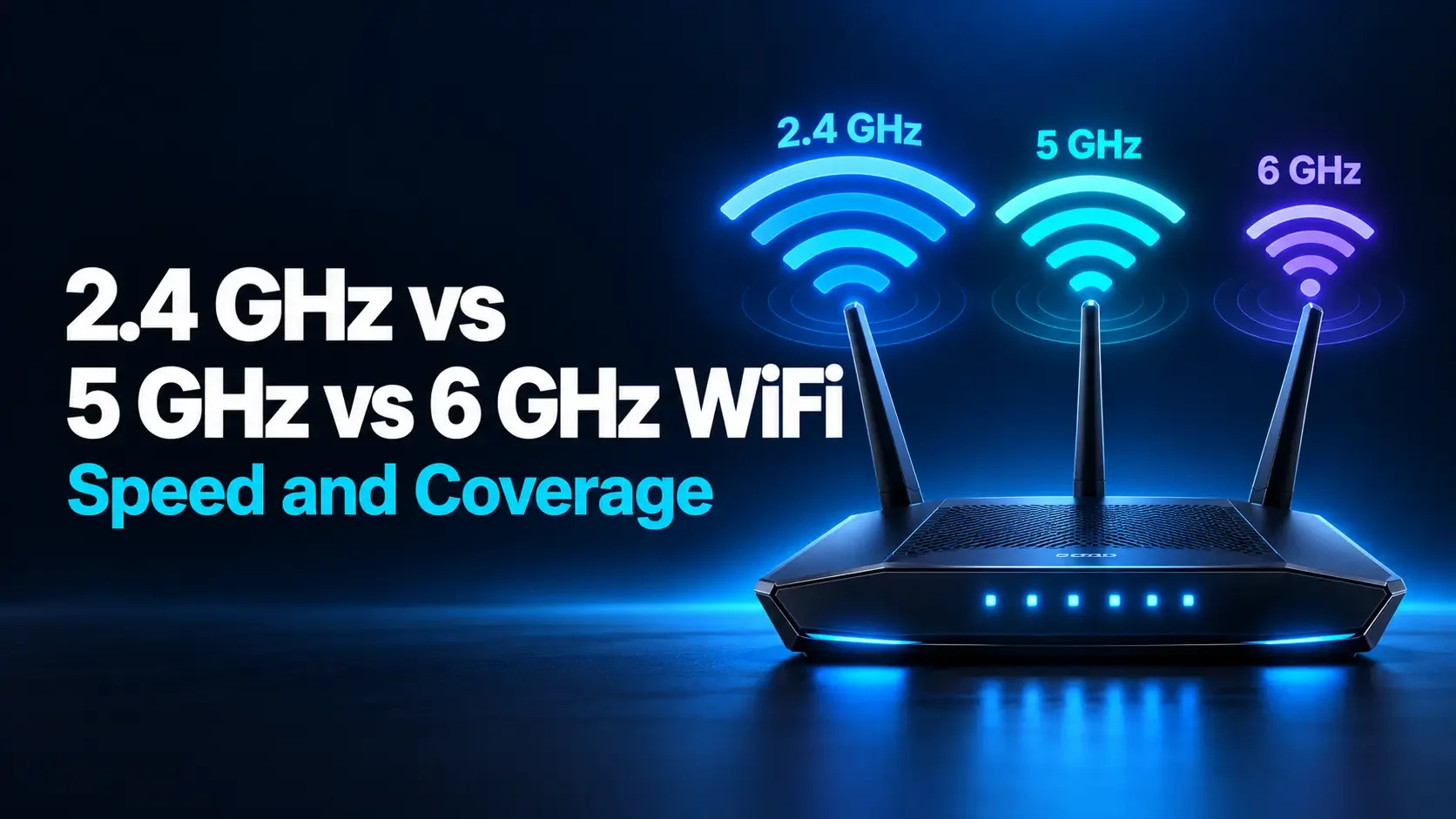
Many home routers provide both 2.4 GHz and 5 GHz connections. Some also support 6 GHz. Higher-frequency bands can provide more capacity under suitable conditions, while 2.4 GHz generally offers better reach.
Compare the available bands where you actually use your device. A fast connection beside the router is not useful if it becomes unreliable at your desk.
If your router manages band selection automatically, start with that setting. Only make manual changes when testing shows a benefit. Using 6 GHz requires compatible equipment and support under your country's wireless regulations.
5. Let the Router Choose a Suitable Channel
Nearby WiFi networks share wireless spectrum. In a crowded apartment building, your router may compete with several others for airtime.
Automatic channel selection is a sensible starting point because the router can choose a channel based on its environment. Check the manufacturer's instructions to understand when your model evaluates channels.
If performance remains poor, try a supported manual channel and compare results. There is no single channel that is fastest in every home. Record the original setting so you can restore it if the change does not help.
6. Avoid Making Every Channel as Wide as Possible
Channel width affects how much wireless spectrum a connection uses. Wider channels can support higher transfer rates, but they can also encounter more interference.
For 2.4 GHz, a 20 MHz channel width is a useful starting point, especially around neighboring networks. For 5 GHz and 6 GHz, begin with the router manufacturer's recommended automatic settings.
Do not assume that selecting the largest available number will improve real-world performance. Compare reliability and speed at your normal location. Keep the setting that works consistently, rather than the one that produces a single unusually high result.
7. Keep Your Router's Firmware Current
Router firmware manages the equipment's operation. Manufacturer updates may address faults, improve compatibility, and provide security fixes.
Check for updates through the router's official app or administration page. If your provider manages the equipment, follow its update process. Enable automatic updates when supported and appropriate for your household.
Schedule installation when a short interruption will not cause problems, and do not disconnect power during the update. Afterward, test again. Updates are worthwhile maintenance, but they do not guarantee a speed increase or solve poor router placement.
8. Fix Software Problems on Individual Devices
If one laptop is slow while another performs well in the same room, investigate the slower device before changing your whole network.
Restart it, check for background transfers, and install appropriate operating-system updates. For a computer with a troublesome wireless adapter, check the manufacturer's recommended driver version.
Use official support tools and downloads rather than unfamiliar driver installers. If the problem started immediately after an update, consult the manufacturer's troubleshooting guidance. Comparing the same device over Ethernet can also help identify whether its wireless connection is the limiting factor.
9. Schedule Large Downloads and Cloud Backups
Game downloads, photo backups, and file synchronization can compete with everyday browsing and calls. Uploads are particularly worth checking when your plan provides much less upload capacity than download capacity.
Schedule large transfers for quieter hours. Where supported, set an upload or download limit inside the application so it leaves capacity for other activities.
For example, a video creator could schedule a large cloud backup after a live meeting rather than running both together. Pause optional transfers briefly to test their effect, then resume them so important backups are not forgotten.
10. Use Traffic Management for Busy-Household Problems
Some routers offer Quality of Service features or Smart Queue Management. Depending on the implementation, these can prioritize selected traffic or reduce delays when the connection is busy.
They are most relevant when calls or games become unresponsive during large transfers. Follow your router's setup guidance, including any instructions for entering connection speeds.
Judge the result by whether the original activity improves. Traffic management may reduce a headline speed-test number while making calls more usable. It manages available capacity; it does not create extra bandwidth or strengthen a weak wireless signal.
11. Connect Stationary Devices with Ethernet
Desktop computers, televisions, and game consoles often stay in one place. Connecting suitable devices by Ethernet can provide a consistent link and reduce their use of wireless airtime.
This can leave more WiFi capacity available for phones and tablets. However, wired devices still share the same internet connection, so a large wired download can still affect everyone.
Check the Ethernet capabilities of the device and any adapter before expecting a speed increase. Some devices have limited wired ports. A cable may still improve stability even when it does not raise the maximum transfer rate.
12. Reposition Existing Mesh Nodes or Extenders
A wireless extender needs a usable connection to the main router. Placing it inside the deepest coverage gap may give your phone a strong local signal while leaving the extender's upstream connection weak.
Move it toward the main router and use the manufacturer's signal indicator or placement test if available. The goal is to reach the problem area while keeping a dependable connection back to the network.
For mesh systems, test node placement before adding more units. Extra nodes do not automatically improve performance, particularly when their own connections are weak or unnecessary.
13. Consider a Wired Access Point for a Persistent Coverage Gap
If one room remains difficult to reach and you can run a cable, a wired access point can provide WiFi locally without relying on a weak wireless link back to the main router.
A compatible mesh system may also support Ethernet backhaul, meaning its nodes communicate over a cable. Check the equipment's supported layout before buying or installing anything.
If you reuse a router for this purpose, follow its documented access-point mode instructions. Adding equipment without configuring its role correctly can create network problems. Choose this option when your tests show a genuine coverage need.
14. Check the Cables and Ports Feeding Your Router
Even a wireless network depends on wired connections between equipment. A damaged cable or limited-speed port between your modem, router, or switch can hold back all connected devices.
Check that plugs are seated properly and inspect cables for visible damage. Try a known-good cable suitable for the equipment's supported speeds. If available, review the negotiated link speed in your router's administration page.
Cat 5e or Cat 6 is commonly suitable for gigabit home links within the relevant installation limits. An expensive replacement cable will not increase an already healthy connection beyond its port or service limits.
15. Upgrade Only the Part Your Tests Identify
After trying the simpler changes, use your results to decide whether an upgrade is worthwhile. Poor coverage may justify another access point. One consistently slow computer may need a better supported adapter. An inadequate router may need replacement.
If wired results are also poor, check your provider's service status, plan conditions, and equipment requirements before purchasing a faster package.
Match any purchase to the actual bottleneck. A new router cannot remove a service fault, and a faster plan cannot directly fix a weak signal through several walls.
Choose Your First Change Based on the Symptom
You do not need to try all 15 tips. Start with the situation that best matches your home, then measure the effect of one change.
| Your main problem | First action to try | Useful comparison |
|---|---|---|
| Slow in one room | Improve router or mesh-node placement | Same device, same room, before and after |
| Slow only during downloads or backups | Schedule or limit large transfers | Call quality with the transfer active and paused |
| Only one laptop is affected | Check its software and wireless adapter | Another device in the same location |
| WiFi varies but Ethernet is stable | Investigate interference, bands, and channels | Repeated wireless tests under similar conditions |
| Everything is slow, including Ethernet | Check shared traffic, cables, and internet service | Wired tests with optional transfers paused |
How to Confirm That an Improvement Lasts
After making a change, repeat the WiFi speed test from your usual location. Keep the device and testing conditions similar. Take a few readings instead of relying on the fastest one.
Then try the activity that originally caused frustration. Attend a call, upload a file, or stream a video. If your problem normally appears in the evening, check again during that period.
For example, imagine moving a router improves an office test from 24 Mbps to readings of 58, 61, and 59 Mbps. Those invented numbers illustrate a consistent improvement. A single result of 61 Mbps followed by repeated interruptions would be less convincing.
Record both the speed results and the practical outcome. “Calls stopped freezing during backups” can be more meaningful than a small increase in download speed.
Frequently Asked Questions
What is the easiest way to improve WiFi speed without buying anything?
Start by testing near the router and in the problem room. If location makes a large difference, try moving the router into a more open position. If performance worsens during busy periods, pause or reschedule large transfers.
Will restarting my router make WiFi faster?
A normal restart can clear some temporary faults, but it does not permanently fix poor coverage or insufficient capacity. Record results before and after. Frequent recurring problems deserve further investigation rather than relying on constant restarts.
Is a mesh system always better than a WiFi extender?
No single choice is best for every home. Results depend on layout, equipment, placement, and how each node connects upstream. Check whether your problem requires wider coverage, a stronger connection between nodes, or a wired access point.
Will changing DNS improve my WiFi speed?
DNS affects how domain names are translated into network addresses. A different resolver may improve lookup responsiveness in some cases, but it will not strengthen your WiFi signal or increase your internet plan's transfer capacity.
Why did my speed-test result fall after enabling traffic management?
Some traffic-management features deliberately leave capacity available or control queues to reduce delay. A lower peak result may accompany smoother calls under load. Compare the real activity and review your router's configuration before deciding whether the feature helps.
Build a Faster Connection Around Your Actual Needs
Begin with measurements, then work through placement, interference, device settings, and shared traffic. Consider extra equipment only when the simpler tests identify a limitation it can solve.
The most useful home WiFi improvement is one you can notice where you spend time: a stable call at your desk, reliable streaming in the living room, or faster file transfers without disrupting everyone else.
Further Reading
- Apple: Recommended settings for WiFi routers and access points
- Apple: Reducing wireless interference
- Microsoft: WiFi and your home layout
- Intel: Checks for wireless connection problems
- Google: Troubleshooting slow internet and equipment limitations
- eero: Advanced networking settings and Smart Queue Management
How is your connection doing?
Measure download, upload, and response time on the device you use every day.
Test your internet speed ↗