WiFi 5 vs WiFi 6 vs WiFi 6E vs WiFi 7: Which to Choose?
Compare WiFi 5, WiFi 6, WiFi 6E, and WiFi 7 to understand speed, coverage, compatibility, and upgrade benefits. Learn which standard fits your devices, internet plan, budget and daily home WiFi needs.
On this page
- WiFi 5 vs WiFi 6 vs WiFi 6E vs WiFi 7: Which Standard Do You Need?
- What Do WiFi Generation Numbers Mean?
- WiFi 5, WiFi 6, WiFi 6E, and WiFi 7 Compared
- WiFi 5: Still Useful When Your Existing Network Works
- WiFi 6: Better Efficiency for Busy Networks
- WiFi 6E: WiFi 6 with Access to 6 GHz
- WiFi 7: More Flexible Connections and Higher Speed Potential
- Why Advertised WiFi Speeds Can Be Misleading
- Will a Newer Standard Improve Coverage?
- Check Device and Software Compatibility
- Which Standard Fits Your Situation?
- Look Beyond the Wireless Generation Before Buying
- Test Your Current Network Before Upgrading
- Frequently Asked Questions
- Choose the Upgrade You Can Actually Use
- Further Reading
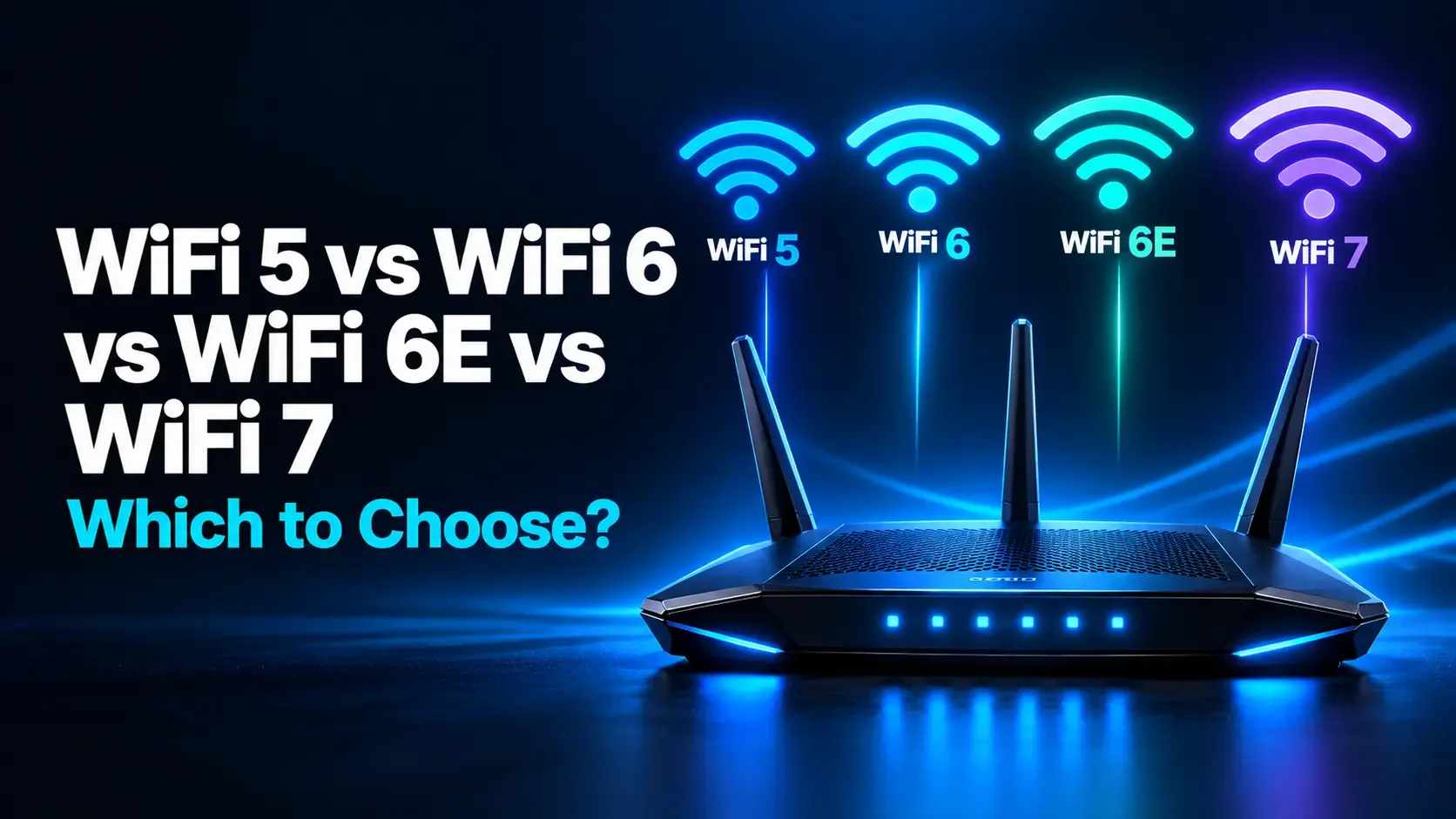
WiFi 5 vs WiFi 6 vs WiFi 6E vs WiFi 7: Which Standard Do You Need?
Shopping for a router can become confusing quickly. One model advertises WiFi 6, another promises WiFi 6E, and a newer option highlights WiFi 7. Meanwhile, your existing WiFi 5 router may still handle streaming and browsing without obvious problems.
Each generation introduces useful capabilities, but a higher number does not guarantee a noticeable improvement in every home. Your devices, internet plan, wireless environment, and router placement determine how much benefit you actually receive.
WiFi 6 is a capable choice for everyday networking. WiFi 6E adds access to the 6 GHz band for compatible devices. WiFi 7 introduces further improvements in throughput and connection flexibility. WiFi 5 can remain adequate when existing equipment is supported and meets your needs.
What Do WiFi Generation Numbers Mean?
WiFi generation names provide a simpler way to describe technologies based on the IEEE 802.11 family of wireless networking standards.
- WiFi 5: Based on 802.11ac.
- WiFi 6: Based on 802.11ax.
- WiFi 6E: Extends WiFi 6 into the 6 GHz band.
- WiFi 7: Based on 802.11be.
These names describe wireless capabilities, not your internet package. A WiFi 7 router does not automatically increase the speed supplied by your internet provider.
Also, WiFi 6 does not mean 6 GHz. The generation number and the radio frequency are different things.
WiFi 5, WiFi 6, WiFi 6E, and WiFi 7 Compared
| Generation | Underlying technology | Band support | Main reason to consider it |
|---|---|---|---|
| WiFi 5 | 802.11ac. | 5 GHz for 802.11ac operation. | Keep an existing supported setup that already works well. |
| WiFi 6 | 802.11ax. | 2.4 GHz and 5 GHz. | Improved efficiency and capacity with compatible devices. |
| WiFi 6E | 802.11ax with 6 GHz support. | Adds 6 GHz; home routers usually also offer 2.4 and 5 GHz. | Additional spectrum for compatible devices in busy environments. |
| WiFi 7 | 802.11be. | Can support 2.4, 5, and 6 GHz; check the individual product. | Multi-Link Operation and higher performance potential. |
A router sold as WiFi 5 commonly provides 2.4 GHz connectivity too, using older technology such as WiFi 4 on that band. Similarly, a WiFi 7 label does not guarantee that a product includes a 6 GHz radio or every optional high-performance feature.
WiFi 5: Still Useful When Your Existing Network Works
WiFi 5 brought substantial improvements to 5 GHz wireless networking. A good WiFi 5 setup can still support video streaming, browsing, online meetings, and ordinary file transfers.
If your devices receive the speeds they need and the connection stays reliable, replacing the router purely because its generation number is older may provide little practical benefit.
However, hardware condition and software support matter. An older router that no longer receives security updates, frequently restarts, or struggles with your household's workload deserves attention even if its wireless speed sometimes looks acceptable.
For a new purchase, compare newer supported models before choosing WiFi 5. A low purchase price is less attractive if the device has limited remaining support or cannot accommodate your expected needs.
WiFi 6: Better Efficiency for Busy Networks
WiFi 6 improves how compatible routers and devices share wireless resources. Its value is not limited to making one download faster.
One feature, OFDMA, allows the router to divide a channel into smaller resources for communication with multiple compatible devices. This can improve efficiency when several devices have traffic to send.
WiFi 6 also includes capabilities such as Target Wake Time, which can help compatible devices coordinate when they wake to communicate. The benefit depends on whether the equipment and software use it.
WiFi 6 is worth considering when upgrading an older network for everyday household use. However, dozens of connected devices do not automatically mean heavy traffic: idle smart plugs place different demands on a network than several active video streams.
Compare the router's overall design, supported features, and coverage requirements rather than relying on the generation label alone.
WiFi 6E: WiFi 6 with Access to 6 GHz
The important addition in WiFi 6E is the 6 GHz band. This provides more spectrum for compatible devices where local regulations allow it.
WiFi 5 and ordinary WiFi 6 clients cannot connect on 6 GHz. Moving capable devices onto that band can reduce competition with older equipment using 2.4 or 5 GHz.
The benefit is especially relevant in places where existing bands are crowded. For example, a compatible laptop near a 6E access point may gain a cleaner connection in an apartment building.
WiFi 6E does not inherently double WiFi 6 speeds under otherwise identical conditions. It uses the same underlying generation, with additional spectrum that can make favorable channel configurations easier to achieve.
Your router and client device must both support 6 GHz. Check regional availability, operating system support, and the exact device model before buying equipment for this feature.
WiFi 7: More Flexible Connections and Higher Speed Potential
WiFi 7 builds on previous generations with features that can improve throughput and reliability. Three are particularly useful to understand.
Multi-Link Operation
Multi-Link Operation, or MLO, allows compatible equipment to use multiple wireless links as part of one logical connection. Depending on the implementation, traffic can move between links or use multiple links concurrently.
This can help when one link becomes busy or unreliable. However, not every client supports the same MLO modes, so it does not mean every WiFi 7 phone combines all three bands at full speed.
Channels up to 320 MHz wide
WiFi 7 can support 320 MHz channels in the 6 GHz band, compared with up to 160 MHz in WiFi 6 and 6E. Wider channels can carry more data under suitable conditions.
Both ends of the connection must support the channel width. Available spectrum, regional rules, and nearby networks also affect whether using it is practical.
More data carried in each radio symbol
A capability called 4096-QAM can increase data rates when signal quality is excellent. Its highest rates require favorable radio conditions, so it is not a promise of maximum speed through several walls.
WiFi 7 is most compelling when compatible devices and demanding workloads can use these capabilities. Check individual specifications: two WiFi 7 products can differ substantially.
Why Advertised WiFi Speeds Can Be Misleading
Router packaging often shows a large combined speed rating. That number may add theoretical link capacities across several radios. It is not necessarily the speed one laptop can receive.
Three different measurements are easy to confuse:
- Router capacity rating: A marketing figure that may combine multiple bands.
- Wireless link rate: The connection rate negotiated between your device and access point.
- Actual throughput: The useful data transferred during a download, upload, or local file copy.
Protocol overhead, interference, other traffic, and device capabilities reduce useful throughput below the link rate. Internet tests are additionally limited by the broadband service and the destination being tested.
For example, if your internet service delivers about 100 Mbps and your current WiFi already carries that reliably, a newer router will not make that service deliver 1,000 Mbps.
Will a Newer Standard Improve Coverage?
Not automatically. Coverage depends on placement, building materials, antennas, permitted transmit power, interference, and the client device as well as the router.
The 2.4 GHz band generally reaches farther through a home than higher-frequency bands, although it offers less capacity and can be crowded. The 6 GHz band is useful for high-performance nearby connections, but should not be treated as a cure for distant rooms behind thick walls.
If internet access is fast near the router and unreliable upstairs, better placement or an additional access point may help more than replacing one router with a newer generation in the same corner.
Mesh systems still need a good connection between units
Mesh units communicate through a connection called backhaul. A wireless backhaul can become a bottleneck if units are too far apart or separated by difficult building materials.
Ethernet backhaul can improve consistency when supported and practical to install. Evaluate the complete layout rather than assuming a WiFi 7 mesh label guarantees strong coverage everywhere.
Check Device and Software Compatibility
A connection uses capabilities that both the access point and client support. Your existing laptop does not gain WiFi 7 hardware features simply because you install a WiFi 7 router.
Modern home routers generally support older devices on compatible bands and security settings. A WiFi 5 laptop can typically join a newer router's 5 GHz network, but it cannot use a 6 GHz-only network.
Check the manufacturer's specifications for your exact phone, tablet, or computer model. Similar model names do not always mean identical wireless hardware.
Software also matters. For supported Intel WiFi 7 products, Intel lists Windows 11 version 24H2 or later as a requirement for WiFi 7 functionality, along with suitable drivers and a compatible router. Other platforms have their own requirements.
Which Standard Fits Your Situation?
| Your situation | Practical approach |
|---|---|
| A supported WiFi 5 setup already works reliably | Keep it until your needs or its support status change. |
| You need a replacement for ordinary home use | Compare well-supported WiFi 6 and WiFi 7 models within your budget. |
| Your devices support 6 GHz and 5 GHz is congested | Consider WiFi 6E or a WiFi 7 model that includes 6 GHz. |
| You transfer large files locally or use multi-gigabit internet | Consider WiFi 7 alongside suitable wired ports and client hardware. |
| Your main problem is a distant room with weak reception | Prioritize placement, additional access points, and backhaul. |
| Most devices are older and will remain in use | Prioritize compatible bands, reliable software, and useful coverage. |
WiFi 6E can still be an attractive purchase if it provides the features you need at a meaningfully lower total cost. If a suitable WiFi 7 system costs only a little more, compare its support policy and specifications before choosing.
Look Beyond the Wireless Generation Before Buying
A router is part of a larger network. Check these details before paying for an upgrade:
- Ethernet ports: A 1 Gbps port in the internet path limits what can pass through that port, even with faster WiFi.
- Client capabilities: Confirm band support, channel widths, and relevant WiFi 7 features.
- Security updates: Check the manufacturer's support policy and automatic update options.
- Regional compatibility: Confirm that the model supports permitted operation in your country.
- Placement and expansion: Consider where equipment will sit and whether wired access points are practical.
For a password-protected 6 GHz home network, expect WPA3 security. Older devices that only support WPA2 need a compatible network on another band. The presence of WPA3 is not unique to WiFi 7, and a newer standard does not replace strong passwords and updates.
Test Your Current Network Before Upgrading
Start with measurements that reveal whether your present WiFi is actually the bottleneck.
- Run the WiFi Speed Test tool near your router.
- Repeat with the same device in the rooms where you normally work.
- Pause large background transfers during the comparison.
- Compare with Ethernet on the same computer when possible.
- Record interruptions during real calls, streams, or games.
Good results near the router but poor results elsewhere suggest a coverage problem. Poor wired and wireless results may point toward a shared limitation, such as the internet service.
If you mainly want faster transfers to local network storage, test those transfers separately. An internet speed test does not measure the full capacity of your local network.
Frequently Asked Questions
1. Is WiFi 6 the same as 6 GHz WiFi?
No. WiFi 6 is a generation based on 802.11ax and operates on 2.4 and 5 GHz. WiFi 6E adds 6 GHz support. WiFi 7 can also use 6 GHz when the equipment and regional rules allow it.
2. Do I need WiFi 7 for 4K streaming?
No. Earlier generations can support 4K streaming when the connection provides sufficient sustained throughput. Reliable coverage and enough internet bandwidth matter more than the generation label alone.
3. Will WiFi 7 make online games lag-free?
No wireless standard guarantees that. WiFi 7 can improve the local connection, but server distance, internet congestion, and other traffic still affect latency. Ethernet remains worth testing for a stationary gaming system.
4. Can a software update turn WiFi 6 into WiFi 6E?
An ordinary WiFi 6 device without suitable 6 GHz radio hardware cannot gain that capability through software alone. Updates can enable or improve features only when the required hardware is already present.
5. Does every WiFi 7 router include 6 GHz?
No. Some products support WiFi 7 without a 6 GHz radio. Check the listed bands and channel widths, particularly if 6 GHz access or 320 MHz channels are your reason for upgrading.
Choose the Upgrade You Can Actually Use
Keep a supported network that already meets your needs. When replacing equipment, compare WiFi generations alongside coverage, client compatibility, wired connections, and software support.
Before making the decision, run an internet speed test in your usual locations. A useful upgrade solves an observed limitation, whether that means a newer standard, better placement, or an additional access point.
Further Reading
How is your connection doing?
Measure download, upload, and response time on the device you use every day.
Test your internet speed ↗